!!! WARNING / DISCLAIMER !!!
The following approach is an inofficial workaround/hack to make the retroclaim form on the SAS website work again.
If you do everything correctly, it seems like it is working fine.
However, you can really mess up thing with this script. If you make a mistake somewhere, or if SAS changes their website tomorrow, or if there is a bug somewhere we aren't aware of or if there's an incompatibility with your specific system or SAS profile, or whatever - anything could happen. Maybe your browser will no longer work, maybe you will lose all your miles, maybe your claim is messed up and it doesn't get credited in time, so you lose out on the 1 million times. Really, anything could happen.
Whatever happens, I will take NO RESPONSIBILITY.
You really should only be doing this if you could have written the script yourself and you know EXACTLY what you are doing.
tr3k originally removed the script because he was seeing that a lot of people were using it who had no clue what they were doing and he tried to save them from themselves. However, seeing that many people have also found it helpful, I decided to put the script back up, since I think it can still be useful if you know what you're doing.
However, everything you do happens exclusively AT YOUR OWN RISK.
YOU HAVE BEEN WARNED.
Alright, quick tutorial for how to use
tr3k's solution:
1. Install a userscript plugin for your browser if you don't have one installed yet.
These extensions allow you to add custom "userscripts" that manipulate the websites you visit.
!!! WARNING / DISCLAIMER !!!
Note that this can be risky - install a userscript with "virus code" and you may find yourself submitting your online banking credentials to a hacker.
These scripts can literally manipulate pretty much everything that goes on in your browser.
So be careful with the scripts you install. Ideally, you shouldn't just install scripts from random people on the internet that you don't understand.
Proceed at your own risk.
Tampermonkey, Violentmonkey, Greasemonkey. I'm not sure what the differences are - they all do pretty much the same thing. Tampermonkey is very popular.
For Chrome, you can find it here:
https://chromewebstore.google.com/de...jmpbldmpobfkfo
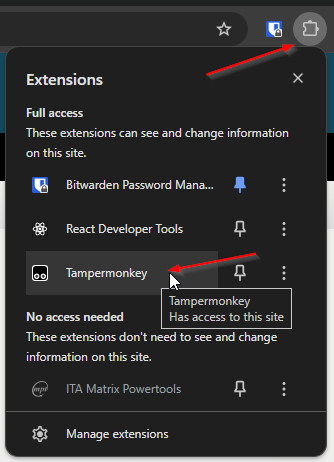
2. Open the Tampermonkey extension by clicking the "jigsaw" button in the Chrome toolbar (if you use Chrome) and then selecting Tampermonkey:
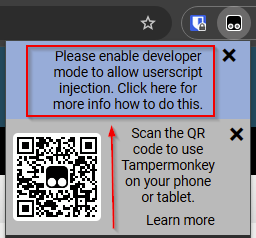
3. You will see a blue text at the top telling you to activate Developer Mode.
So that's what you have to do next: Activate Developer Mode.
Click it - or just use
this link - for instructions how to do that.
If you don't activate Developer Mode, it probably will not work.
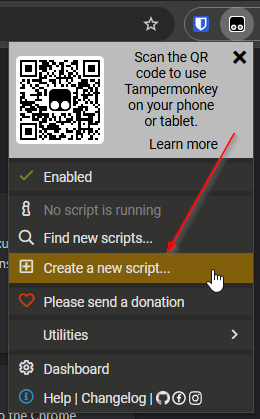
4. After you have activated Developer Mode, go back to the same menu and click "Create a new script...":
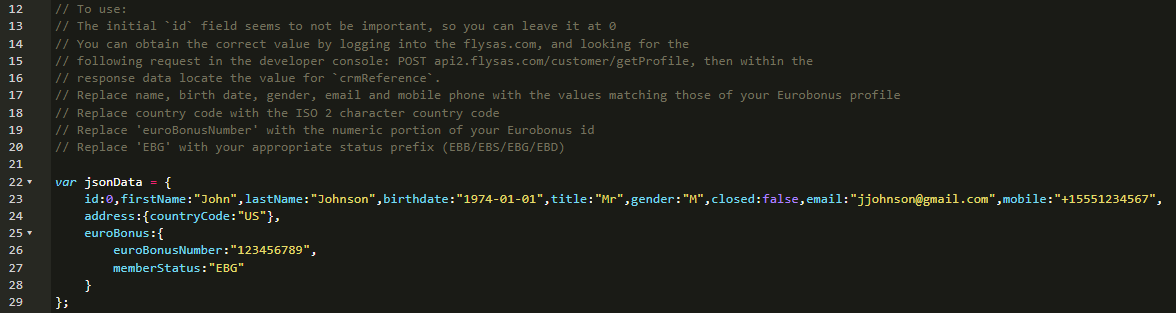
5. Copy and paste the code that
tr3k wrote (based on my earlier attempts) - make sure you really copy
all 58 lines! (the last line is "XMLHttpRequest.prototype.open = myOpen;") - and edit the jsonData block at the top to match your own SAS account information:
Code:
// ==UserScript==
// @name SK Claim Missing Points
// @namespace http://tampermonkey.net/
// @version 2024-11-19
// @description try to take over the world!
// @author You
// @match *://*.flysas.com/*
// @icon https://www.google.com/s2/favicons?sz=64&domain=sas.se
// @grant none
// ==/UserScript==

// To use:
// The initial `id` field seems to not be important, so you can leave it at 0
// You can obtain the correct value by logging into the flysas.com, and looking for the
// following request in the developer console: POST api2.flysas.com/customer/getProfile, then within the
// response data locate the value for `crmReference`.
// Replace name, birth date, gender, email and mobile phone with the values matching those of your Eurobonus profile
// Replace country code with the ISO 2 character country code
// Replace 'euroBonusNumber' with the numeric portion of your Eurobonus id
// Replace 'EBG' with your appropriate status prefix (EBB/EBS/EBG/EBD)

var jsonData = {
id:0,firstName:"John",lastName:"Johnson",birthdate:"1974-01-01",title:"Mr",gender:"M",closed:false,email:"[email protected]",mobile:"+15551234567",
address:{countryCode:"US"},
euroBonus:{
euroBonusNumber:"123456789",
memberStatus:"EBG"
}
};

XMLHttpRequest.prototype.realOpen = XMLHttpRequest.prototype.open;

var myOpen = function(method, url, async, user, password) {
if (url.indexOf('sasgrowth.azure-api.net/api/profile/profile') >= 0) {

this.addEventListener('readystatechange', evt => {
if (this.readyState == 4) {

Object.defineProperty(this, "responseText", {
get() {
return JSON.stringify(jsonData);
},
});

Object.defineProperty(this, "status", {
get() {
return 200;
},
});
}
}, false);
}

//call original
this.realOpen (method, url, async, user, password);
}

XMLHttpRequest.prototype.open = myOpen;
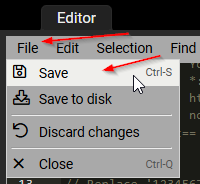
6. Click File --> Save:
7. Go to
https://www.flysas.com/en/eurobonus/...oints/flights/ and enjoy that the retroclaim page is working again.
Note that it will only work with the English version - e.g. the Scandinavian versions are not fixed by this script.
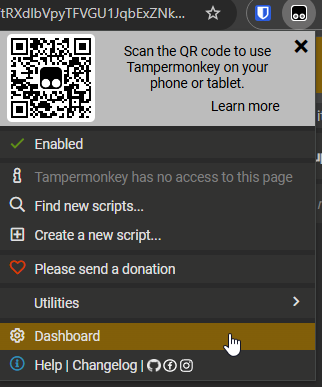
8. Once SAS has fixed this, you should remove the userscript again by going to the Tampermonkey dashboard:
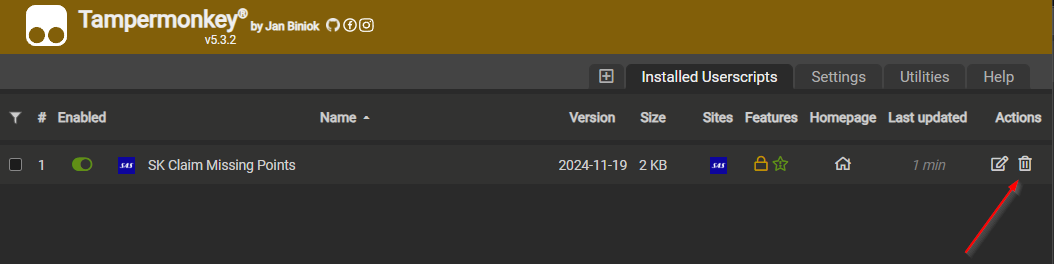
And then clicking the "trashcan" icon next to the SK Claim Missing Points line:
If you only installed the browser extension for this purpose, you might then also consider uninstalling it again.
Bonus content 1:
If you get a new error message like this:
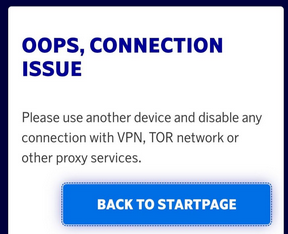
...Then make sure that the script and Tampermonkey extension are allowed to work in incognito browser windows, and then open the SAS website in an incognito browser window and do not accept any cookies.
Thanks to
yamazakiSwe for this tip.
Bonus content 2:
If your claim could not be processed automatically, SAS may offer you to upload a photo of your boarding pass for manual processing.
If you find you cannot submit that "manual processing" form (or there is an error message), then:
1. Change the date of your flight and then change it back to the actual date (then the submit button will start working).
2. Make sure that the file you upload is less than 500KB in size (not the 2MB the SAS website mentions).
Thanks to
Jinyao Lin and
FraMax for this tip.